Shipping
Enabling Shipping in Your Account
Initially, shipping is turned off when you create a new Snipcart account. This is ideal for merchants who deal exclusively in digital products.
To activate shipping, navigate to Store configurations → Shipping in the Snipcart merchant dashboard and use the available toggle switch.
Important: Shipping rates apply in the currency of the shopping cart. For example, a shipping rate of 10 will be charged as 10 USD if the cart is in USD, or 10 EUR if the cart is in EUR. To convert a fixed-currency rate into the cart's currency automatically, set the Rate currency on the method (see Choosing the Rate Currency); for full control, use the shipping webhook.

Setting Up Custom Shipping Methods
With custom shipping methods, you can establish specific shipping options and rates for your store based on various criteria like location, delivery time, and weight.
Access this feature under Custom shipping → Custom shipping methods in your dashboard. Switch it "ON" and click "Configure" to begin.
Defining Name Delivery Time
- Assign a name (e.g., "Express delivery").
- Set guaranteed delivery days (e.g., "2").
- Specify a minimum order total for this method (e.g., "100.00").
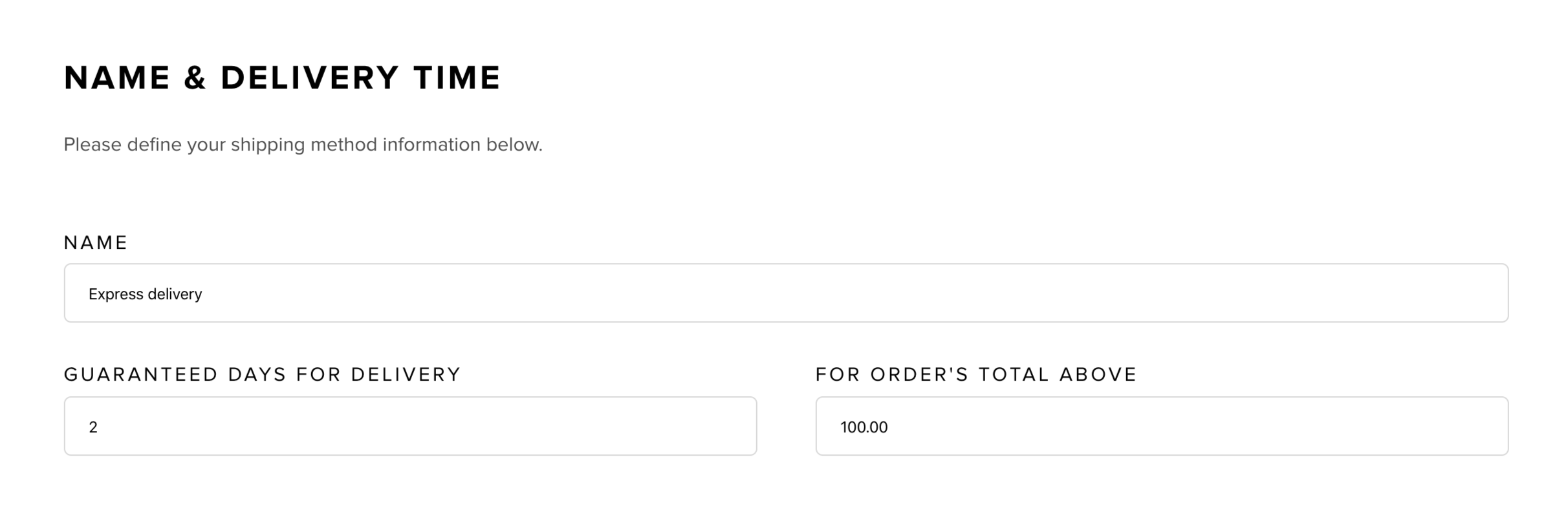
The last two parameters are optional.
Setting Up Location Parameters
Toggle "ON" to limit the shipping method to specific regions. For worldwide availability, keep it "OFF".
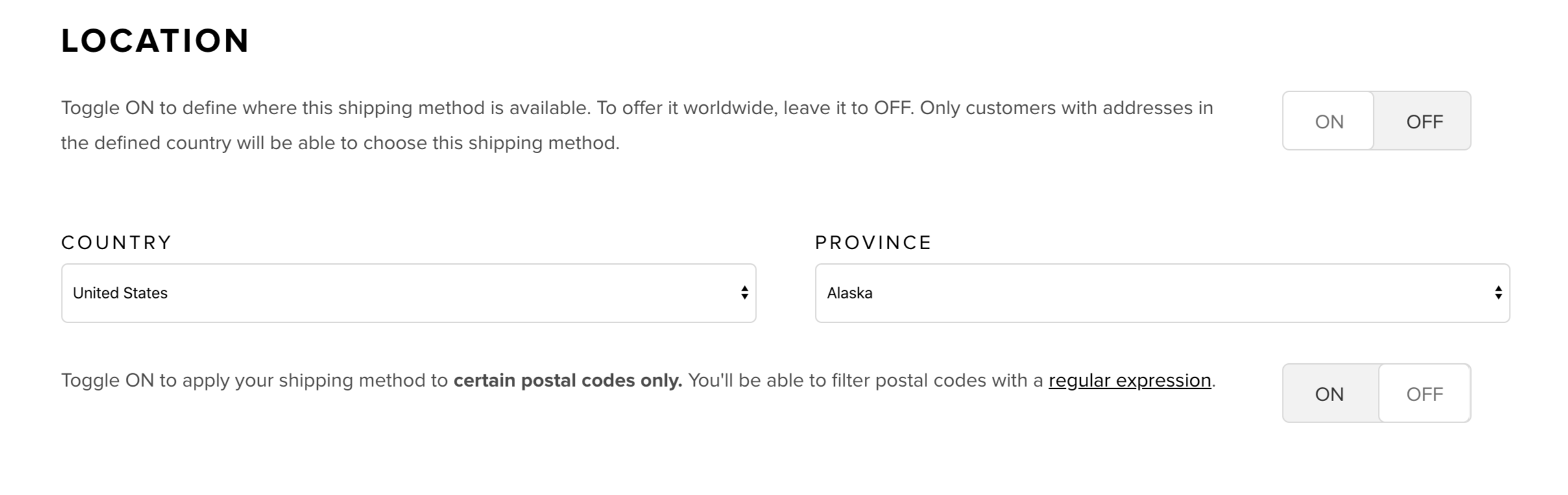
Remember, the most specific shipping methods are prioritized — see How Snipcart chooses which methods to show below.
Configuring Rates
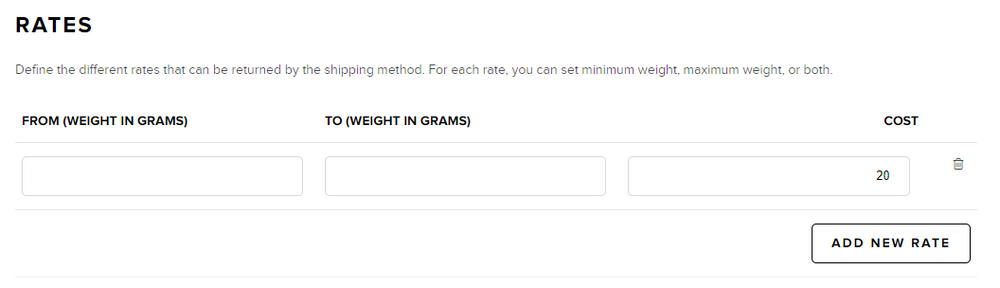
Note: For rates based solely on location, create a single rate and leave the weight fields blank.
Define multiple rates based on weight ranges. Ensure product weights are specified using data-item-weight.
In the example below, shipping costs vary with the order's total weight:
- Less than 1000g: $10.00
- Between 1000g and 2000g: $20.00
- Over 2000g: $30.00
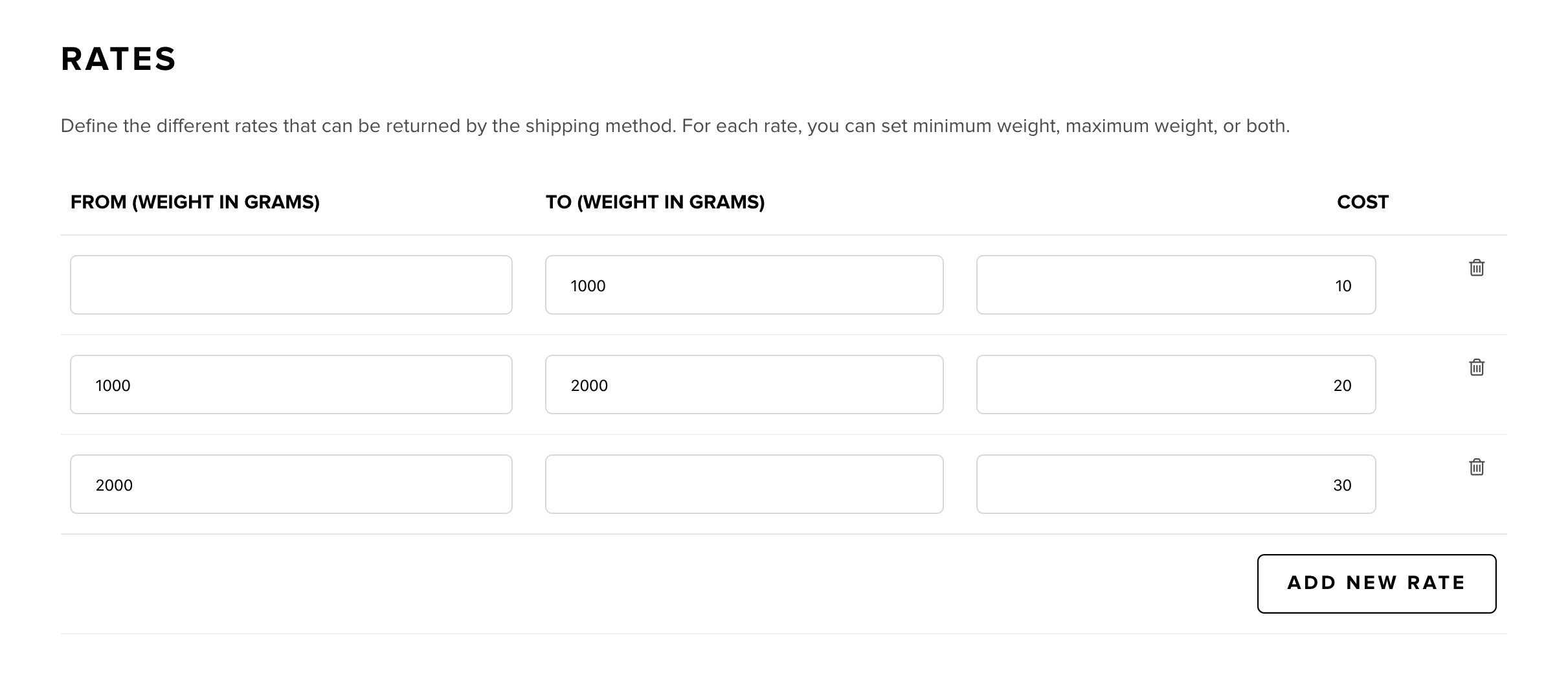
For flat-rate shipping regardless of order content, leave the From and To fields empty and just input the shipping cost.
Choosing the Rate Currency
By default, the amounts you enter are charged as-is in the buyer's checkout currency — a rate of 10 is charged as 10 USD in a USD cart, or 10 EUR in a EUR cart.
To instead enter your rates in one fixed currency and have Snipcart convert them, use the Rate currency selector in the Rates section. Pick the currency your amounts are entered in, and Snipcart converts each rate to the buyer's checkout currency using current exchange rates. Leave it on No conversion to charge the amounts exactly as entered.
Restricting a Method to Specific Postal Codes
A method can also be limited to addresses whose postal/ZIP code matches a regular expression (the postalCodeRegex field in the Custom Shipping Methods API). For example, ^75\d{3}$ matches every Paris postal code (they all start with 75), while ^(?!20)\d{5}$ matches any 5-digit French postal code except those starting with 20 (Corsica).
How Snipcart Chooses Which Methods to Show
For each customer, Snipcart keeps only the most specific methods that fit:
- Location. It starts from the methods targeting the customer's country — and their province/state, for countries that have them.
- Cart fit. It drops any that don't fit the cart: the method's weight tier must cover the order's total weight, and the cart total must meet the method's minimum order total.
- Postal code. If the customer's postal code matches at least one remaining method's postal-code restriction, only those matching methods are kept; methods with no postal-code restriction are dropped. If none match — or no postal code has been entered yet — only the methods without a postal-code restriction are kept.
- Worldwide fallback. If nothing remains after the steps above, Snipcart shows your worldwide methods (location toggle OFF) that fit the cart. So worldwide methods appear only when no location-specific method is available for that customer — one matching country method is enough to hide them all.
When several rates inside the chosen method apply, the cheapest one is charged.
Provinces & states: target the province/state for countries that have them (Canada, the US, …). A country-only restriction won't match those customers, and they'll fall through to your worldwide methods.
Using Webhooks for Custom Shipping Calculations
For complete control over shipping costs, consider webhooks. They're also useful for integrating with unsupported third-party services like Shipstation.
Further details on using webhooks can be found in this documentation.
Integration with Major Shipping Providers
Snipcart supports integrations with several major shipping providers:
- USPS
- UPS
- Purolator
- Canada Post
- Australia Post
Note : FedEx has been removed due to changes to their API policies. Users with an existing integration will keep working for the time being, but no new users may use it.
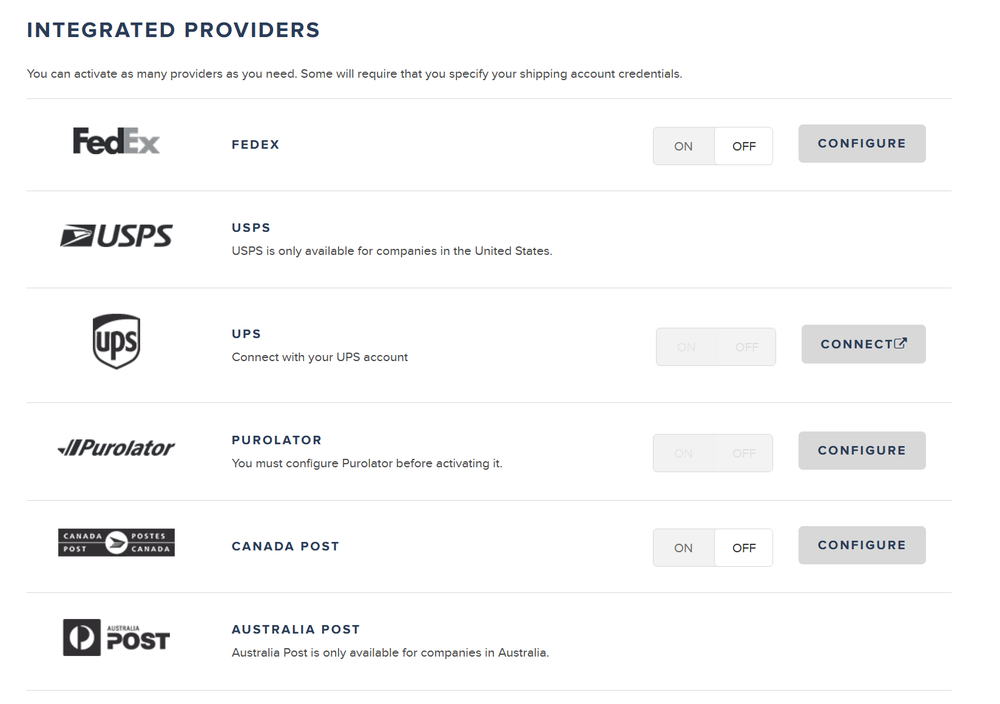
These integrations connect directly to the providers' APIs, offering accurate shipping estimates. You'll need to obtain API credentials from these providers and configure them in your Snipcart dashboard.
Remember to define your product's weight with data-item-weight to enable these integrations.
USPS requires all product dimensions to be set.
Shipping Boxes
If you've connected UPS, you can list the boxes you actually ship with. Snipcart then packs each order into those boxes to get more accurate UPS rates.
Shipping boxes are available for UPS today, and are coming soon to USPS and possibly other carrier integrations.
Adding Your Boxes
In the dashboard, go to Store configurations → Shipping and click Manage shipping boxes on your connected UPS integration. This opens the Shipping boxes page. If UPS isn't connected yet, the page asks you to connect it first.
Click Add box and fill in:
- Name (required, up to 100 characters), e.g., "Medium box".
- Inside dimensions (required): length, width, and height in cm. Measure the inside of the box, meaning the space available for your items.
- Tare weight (required): the weight of the empty box, in grams. It's added to the package weight.
- Outside dimensions — what the carrier measures (optional): enter all three or leave all three empty. If left empty, the inside dimensions are used. Carriers bill on the outside size (dimensional weight), so entering them makes your quotes more accurate.
You can add up to 32 boxes per mode.
Live and Test mode have separate box lists. Changes apply only to the mode you're currently in. Importing your Test settings into Live copies your Test boxes over your Live ones, replacing them.
How Boxes Affect Your Quotes
- Items that don't fit in any of your boxes still get a quote, using an automatically sized package.
- With no boxes, every order is quoted with automatically sized packages, as before.
- Expect quotes to change. Packing into real boxes accounts for empty space and each box's own weight, so quotes can come out higher than with automatically sized packages, but they're closer to what the carrier actually bills. For the best quotes, list boxes that fit your products well and enter their outside dimensions.
Seeing Which Boxes Were Used
After checkout, the order page in the dashboard shows Packing used for the shipping quote: the box or boxes the shipping price was based on, or "Sized automatically" if none were used. The same information is in the order's shippingPackages field in the Orders API and order webhooks.
This shows how the shipping price was calculated. It's not a packing instruction.